Instagram carousels
Instagram carousels from your product link
Filmagic writes a cover, a slide per feature and a closing slide from what it reads on your site. Add or remove slides, switch the layout, and export every slide as its own image or animated video.
Free to preview, no account needed.
Templates that fit


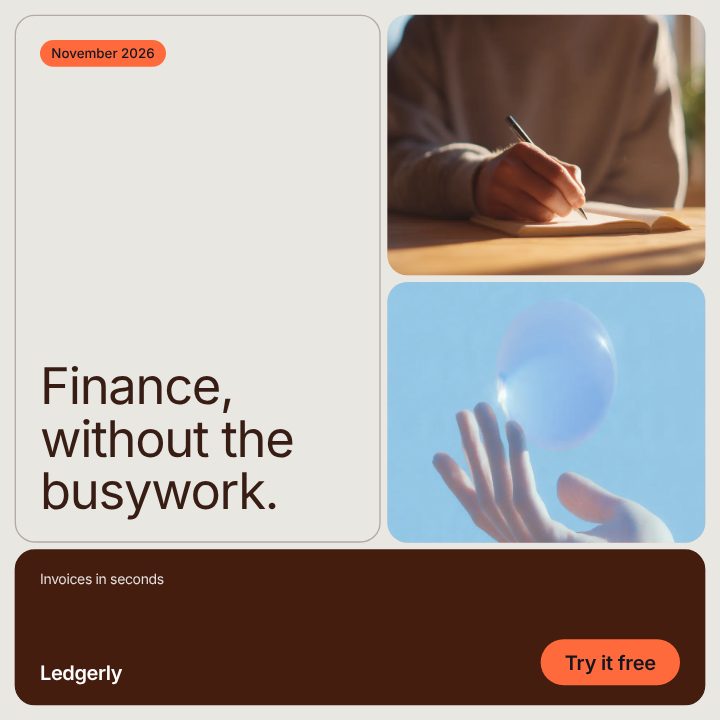

Why carousels work
People swipe through a carousel instead of scrolling past it, and every swipe keeps them on your post longer. A carousel also has room for what a single post can't hold: a feature tour, a how-to in steps, or a before and after.
How the Carousel template is built
- Cover. Your headline set large, with small icon chips inside the words. This is the slide that has to earn the swipe.
- Feature slides. One feature each: a label, your screenshot and one line under it. Start with three from your site, then add up to eight.
- Closing slide. The call to action and your link.
Pick a slide to edit it, and use the plus button to add one after it. Three layouts change the whole set at once:
- Panel: each screenshot framed on a bright panel.
- Photo: pictures full bleed, for products with strong imagery.
- Type: numbered slides with no pictures, for tips and lists.
Sizes and slide count
| Setting | What to use |
|---|---|
| Size | 4:5 (1080 × 1350) for the most screen, or 1:1 (1080 × 1080) |
| Slides | Up to 10 in Filmagic: a cover, up to 8 feature slides and a close. Instagram allows up to 20 |
| Format | PNG for still slides, MP4 for animated ones. You can mix both in one carousel |
The export downloads every slide as its own file, in order, in one zip. Upload them to Instagram in that order.
Ideas for a product carousel
- Feature tour: one feature per slide, the benefit as the label.
- How it works in 3 steps: the Type layout, one step per slide.
- What's new this month: one change per slide, with your release screens.
- Five mistakes we fixed: the problem as the label, the fix in the line.
For a single post instead, see Instagram post templates.
Frequently asked questions
Can each slide be animated?
Yes. Each slide is its own short post with its own motion. Export them as MP4s and Instagram plays each one as you swipe.
Can I make a LinkedIn carousel with it?
LinkedIn shows carousels as PDF document posts. Export the slides as PNGs and combine them into one PDF; a free tool to do that is on its way.
How many slides should a carousel have?
Five to seven is a good range: a cover, three to five points and a close. Long enough to teach something, short enough to finish.