On this page
You probably already have everything you need for a product video. It is sitting in a folder of screenshots from your landing page, your App Store listing or your last changelog. The trick is turning stills into something that moves and tells a story.
This guide covers which screenshots to pick, how to order them, how to make them move, and the fastest way to get from a folder of images to a finished video.
Why screenshots work
A screen recording shows everything, including the loading spinner, the cursor wandering and the settings menu. A screenshot shows exactly the moment you choose. That makes screenshots a great base for a launch video:
- They are always on-brand and in focus.
- You can crop to the one part that matters.
- They are easy to update when your UI changes.
- They are honest. People see the real product, not a mockup.
Pick the right screenshots
Three to six is enough for a 30 second video. For each one, ask: does this show a result?
Good picks:
- The finished output: the report, the design, the answer, the dashboard full of data.
- The "aha" moment: the one screen where the value is obvious.
- A before and after pair.
- One detail that surprises people: an integration, a shortcut, a nice touch.
Skip:
- Settings pages, empty states and login screens.
- Screens full of placeholder data.
- Anything so dense you cannot read it on a phone.
Use real, believable data. "Acme Inc" and lorem ipsum make a product look unfinished.
Order them into a story
Screenshots in a random order are a slideshow. In the right order, they are a story:
- The problem. A line of text, or the old painful way.
- The product name.
- The input. What the user does first.
- The result. The best screenshot you have.
- The detail. The thing people will not expect.
- The call to action. Your URL.
Put one short line on each screenshot that says what it shows. "Every crash, grouped by cause" beats "Dashboard view".
Make stills feel alive
Static images on a timeline feel flat. These add motion without fake UI:
- Slow push in. Zoom gently toward the part that matters.
- Crop and dive. Start on the full screen, then cut close to one element.
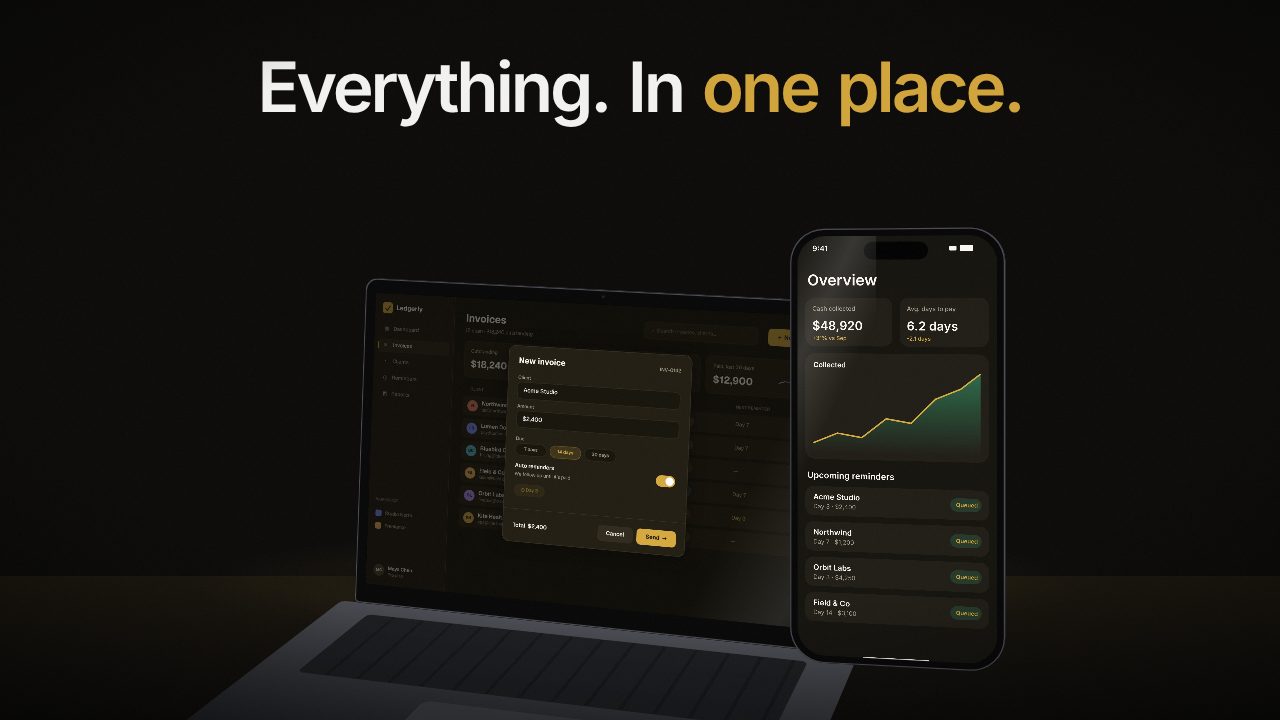
- Device frames. Put the screenshot on a phone or laptop and move the camera around it. For a single still, the free device mockup tool does this in seconds.
- Lift and float. Pull a card or panel out of the screenshot so it hovers above the page.
- Cuts on the beat. Change screenshot when the music hits. It makes simple edits feel deliberate.
Keep each screenshot on screen for two to four seconds. Long enough to read the line, short enough to keep momentum.
Size them for every platform
Take screenshots at a high resolution, ideally from a large display or with your browser zoomed to 100 percent on a retina screen. They will be cropped for 9:16 and 1:1, so keep the important part near the centre.
The fast way: let Filmagic build it
Filmagic does all of the above for you. Paste your product URL and it pulls screenshots from your site, or add your own. It writes a line for each scene, orders them into a story, adds motion and music, and cuts the film in under a minute.
The Device Showcase template puts your screenshots on a 3D phone and laptop with screen dives and UI that lifts off the page. Edit any line, swap any screenshot, then export 16:9, 9:16 and 1:1.
Try Filmagic free, or read how to make a launch video in under a minute.
Frequently asked questions
How many screenshots do I need for a product video?
Three to six is enough for a 30 second video. Each should show one clear result. More screenshots usually means less time to read each one.
Is a screenshot video better than a screen recording?
For a launch video, screenshots are often better because you control exactly what people see. A short screen recording helps when the value is in a flow, such as typing a prompt and watching the answer appear. Filmagic can use both.
How do I add motion to screenshots?
Use slow zooms, crops that dive into one detail, device frames with camera moves, and cuts timed to the music. Filmagic adds this automatically.
Can I make a product video from App Store screenshots?
Yes. App Store screenshots are already sized for a phone and focused on one feature each, which makes them a good base. Put them on a device frame and add one line of text per scene.