On this page
Your homepage is already a storyboard. It has a headline that says what you do, a few sections that each show one thing, and a button that tells people what to do next. Turning a website into a video is mostly a matter of putting those parts in the right order and giving each one a few seconds on screen.
Map your homepage to scenes
Read your homepage top to bottom and note what each section shows:
| Homepage section | Scene in the video |
|---|---|
| Hero headline | Opening title |
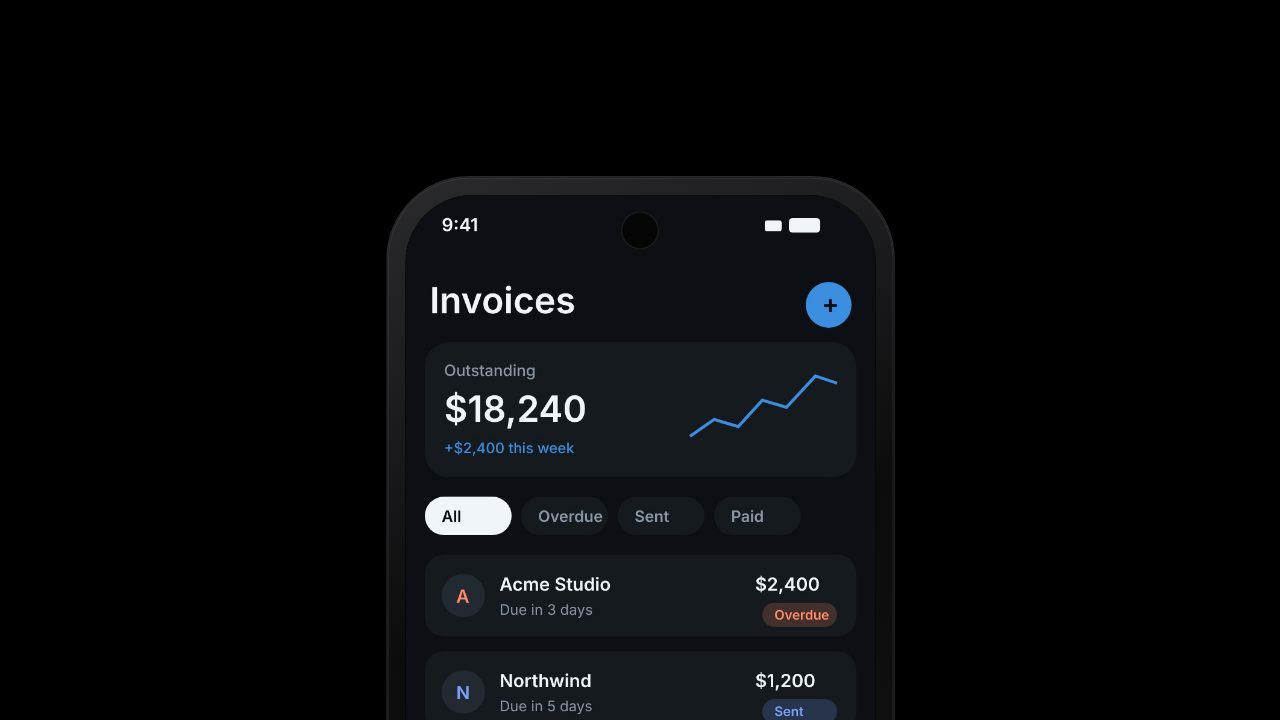
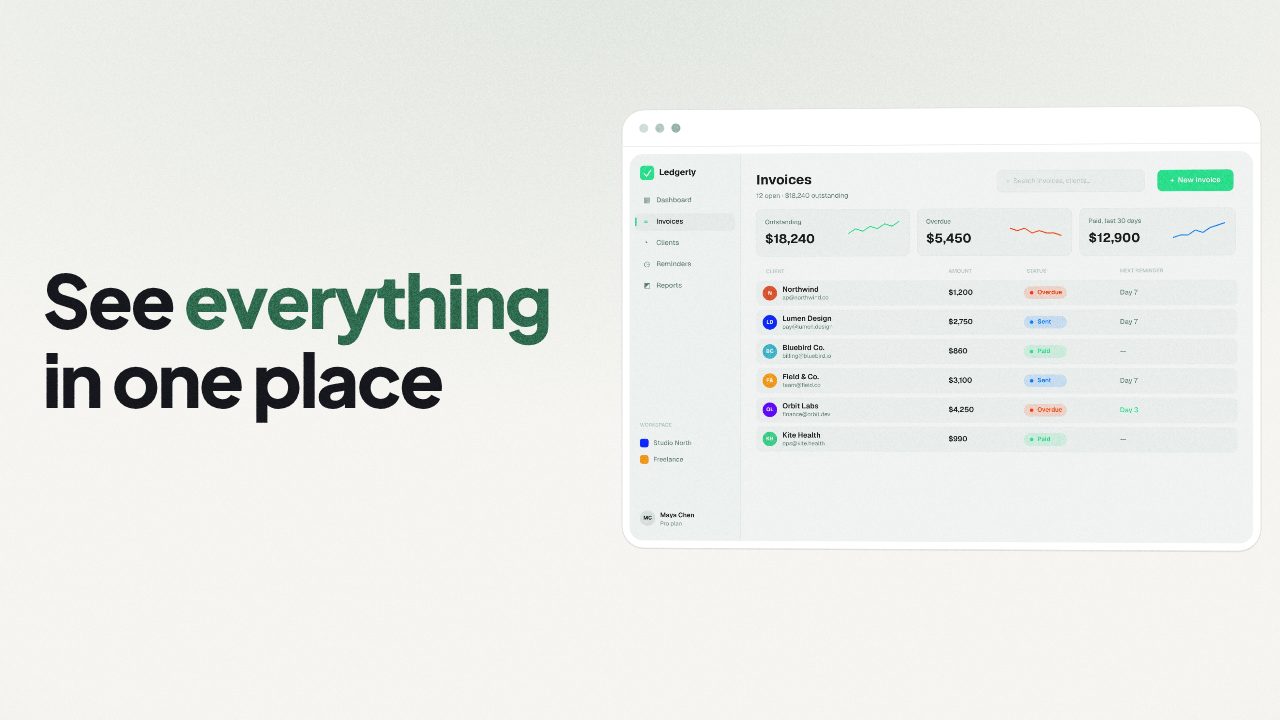
| Hero screenshot or product image | First product shot |
| Feature rows (image + short text) | One scene each, pick the best two or three |
| Logos or testimonial | Optional proof scene, only if it's real |
| Final call to action | End card with your address |
Skip pricing, FAQs, footers and long paragraphs. They read fine on a page and slowly in a video.
A 30 second structure
| Time | Scene |
|---|---|
| 0 to 3 s | Your name and headline |
| 3 to 10 s | Your strongest screen, with one line on what it does |
| 10 to 22 s | Two more features, one screen and one line each |
| 22 to 30 s | Call to action and your address |
For a 15 second social cut, keep the headline, one feature and the call to action.
When the website isn't enough
A homepage built for reading doesn't always have enough to show:
- Illustrations instead of screenshots. Add real screenshots of the product. They prove more than a drawing.
- Everything behind a login. A website to video tool only sees the public page. Add screenshots or a short screen recording of the logged-in product.
- Very long headlines. Write a shorter version for the video. Under eight words reads in a glance.
Keep it on brand
The video should feel like your site, not like a template. Use your brand colour for backgrounds and highlights, your fonts for titles, and your logo on the first and last scene. If the colours read too dark or too bright on video, adjust the accent rather than switching palettes.
Make it in Filmagic
Paste your homepage on Filmagic. It reads your name, headline, feature lines, colours, fonts, logo and images, then writes the scenes and cuts them to music. Add screenshots for anything behind your login, rewrite any line in the side panel, and export 16:9, 9:16 and 1:1 from one edit.
Related: how to turn screenshots into a product video and how to make a product launch video.
Frequently asked questions
Do I need to redesign my site first?
No. If the homepage explains your product to a visitor, it has enough for a video. Add screenshots where the page relies on illustrations.
Should the video copy match the site word for word?
Start with your site's lines, then shorten them. On-screen text needs to be read in a second or two, so a video line is usually half the length of a web line.
Can I use the video on the same homepage?
Yes. A short, quiet loop above the fold works well. See the homepage hero video guide.